Local audio workspace

Speech in. Decisions out.

The power of AI transcription, all in the privacy of your personal computer.

QuietTranscribe records or imports audio on your computer, transcribes it with a local model, and turns the result into minutes or an action plan.

Audio stays on this computer Internet only to download a model
On deviceAudio and transcripts
2 GBImport limit
24 hoursMaximum duration
WhisperLocal model choices
The product

A workspace built around the recording, not the cloud.

Every screen below is QuietTranscribe. Record, import, review, then choose the model that fits the machine in front of you.

01 / WORKSPACE

Start with audio.

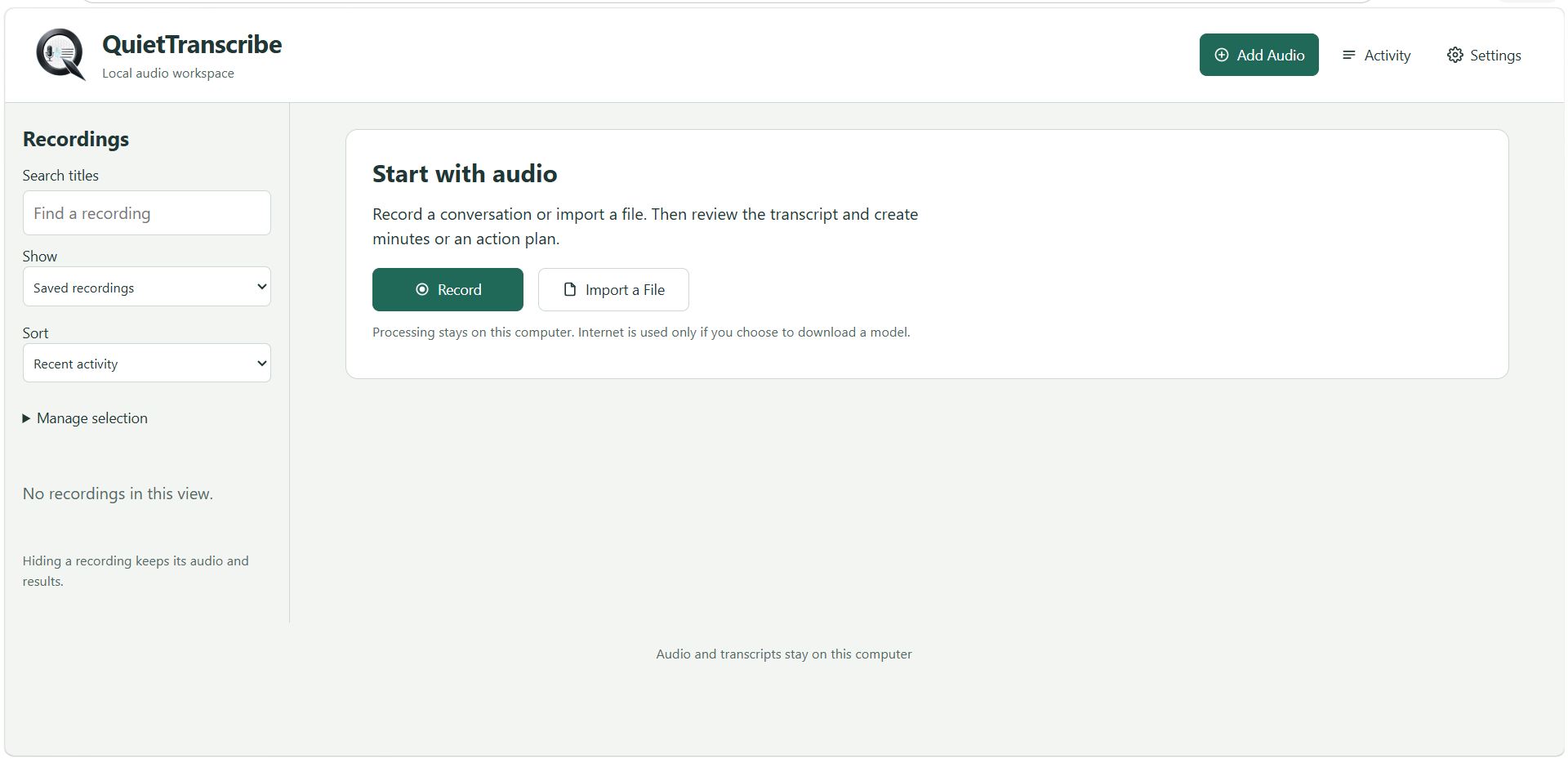
The library is the home of the application. Search titles, show saved recordings, and sort by recent activity. Hiding a recording removes it from the view without deleting its audio or results.

  • Record a conversation or import a file
  • Review the transcript, then create minutes or an action plan
  • Processing stays on this computer
The QuietTranscribe recordings library and the Start with audio panel.
02 / CAPTURE

Record from the microphone you choose.

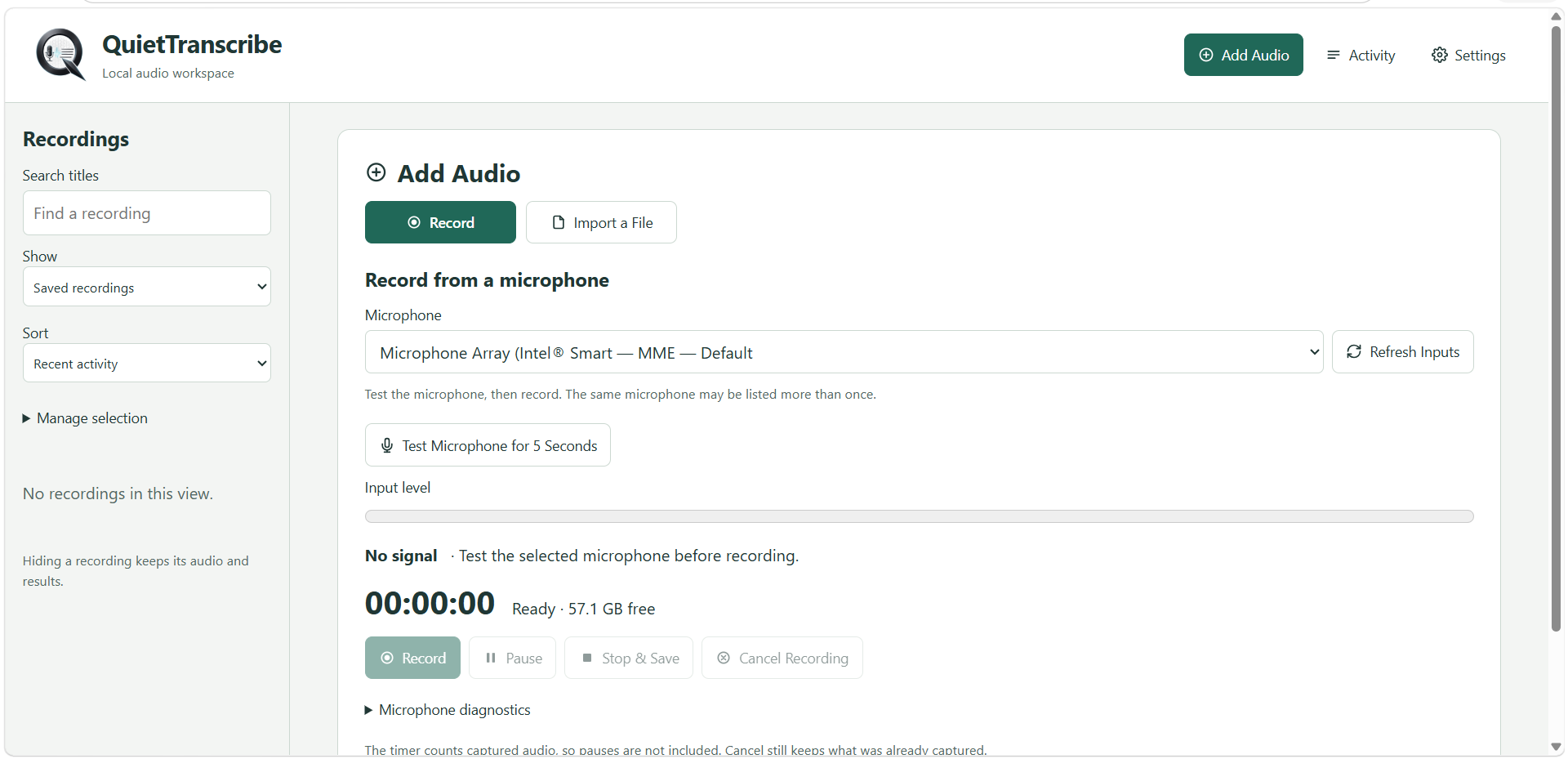
Select an input, refresh the device list, and test the microphone for five seconds before committing to a take. The level meter, timer, pause, stop, and cancel controls stay in one panel.

  • Input level and a five-second microphone test
  • Pause, stop and save, or cancel while keeping captured audio
  • Microphone diagnostics when the signal needs investigation
Add Audio screen showing microphone selection, a five-second test, input level, and recording controls.
03 / IMPORT

Bring in the file you already have.

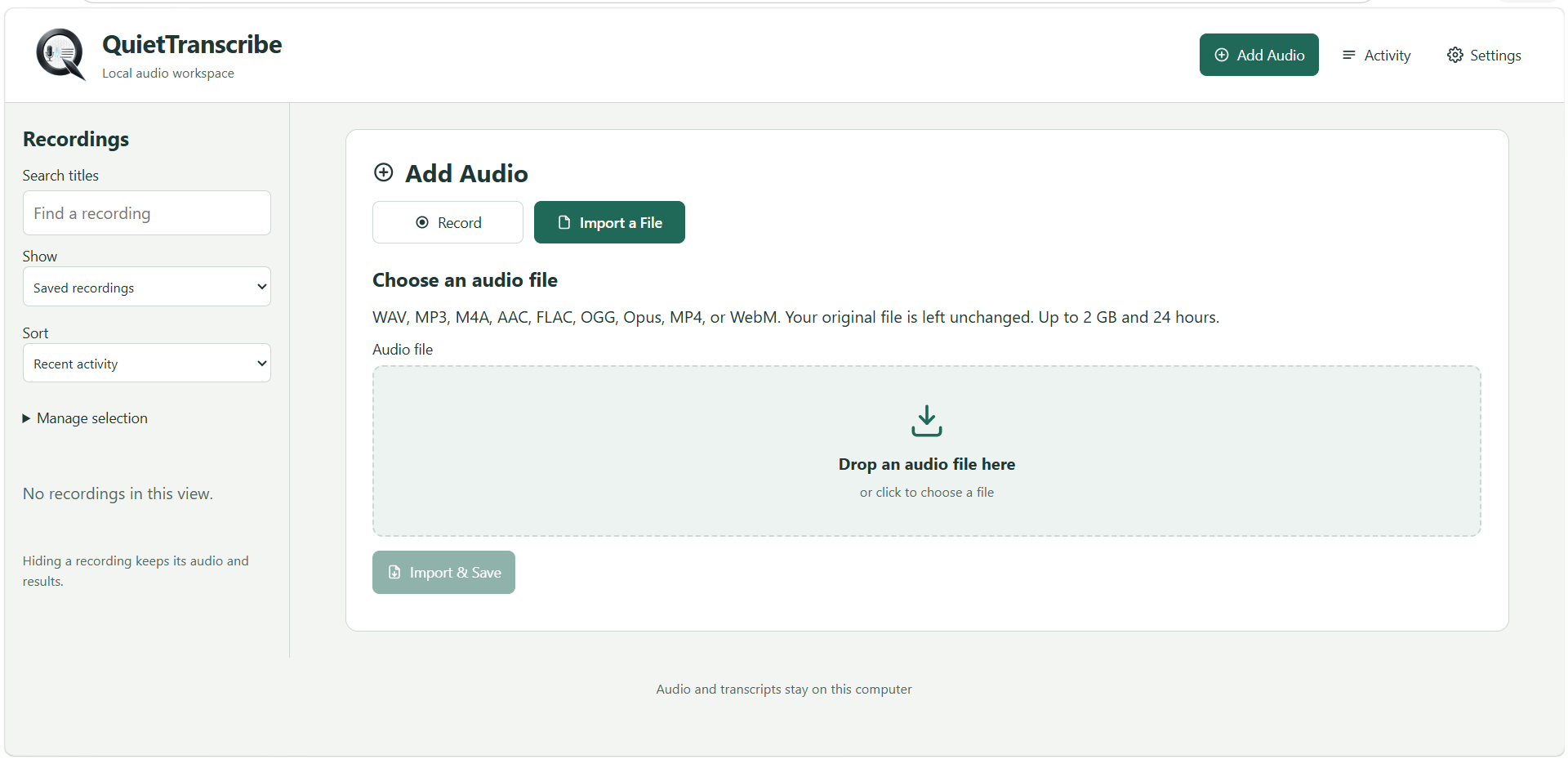
Drop audio onto the importer or choose it from disk. QuietTranscribe accepts WAV, MP3, M4A, AAC, FLAC, OGG, Opus, MP4, and WebM, up to 2 GB and 24 hours. The original file is left unchanged.

  • Drag and drop, or click to choose a file
  • Original media stays where you saved it
  • Import and save when the file is ready
Import a File screen with a drop zone for WAV, MP3, M4A, AAC, FLAC, OGG, Opus, MP4, and WebM.
04 / REVIEW

Inspect the recording before transcription.

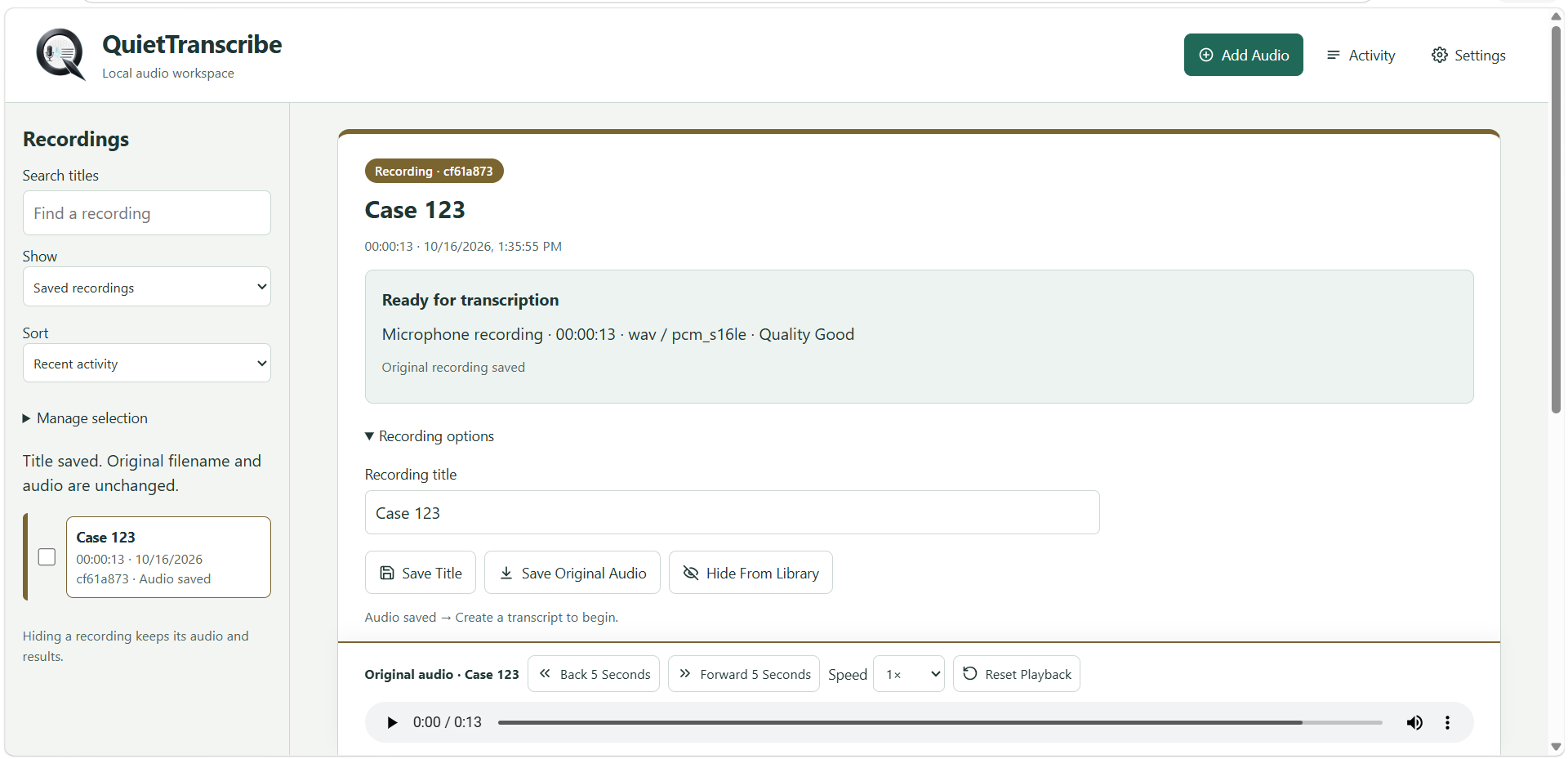
A saved recording shows its duration, format, and quality, then gives you the original audio player. Rename it, keep the original audio, or hide it from the library. Create a transcript when you are ready.

  • Back and forward five seconds, with playback speed
  • Save the title without changing the original filename
  • Ready-for-transcription status before the model runs
A selected recording named Case 123, ready for transcription, with title controls and an audio player.
05 / MODEL

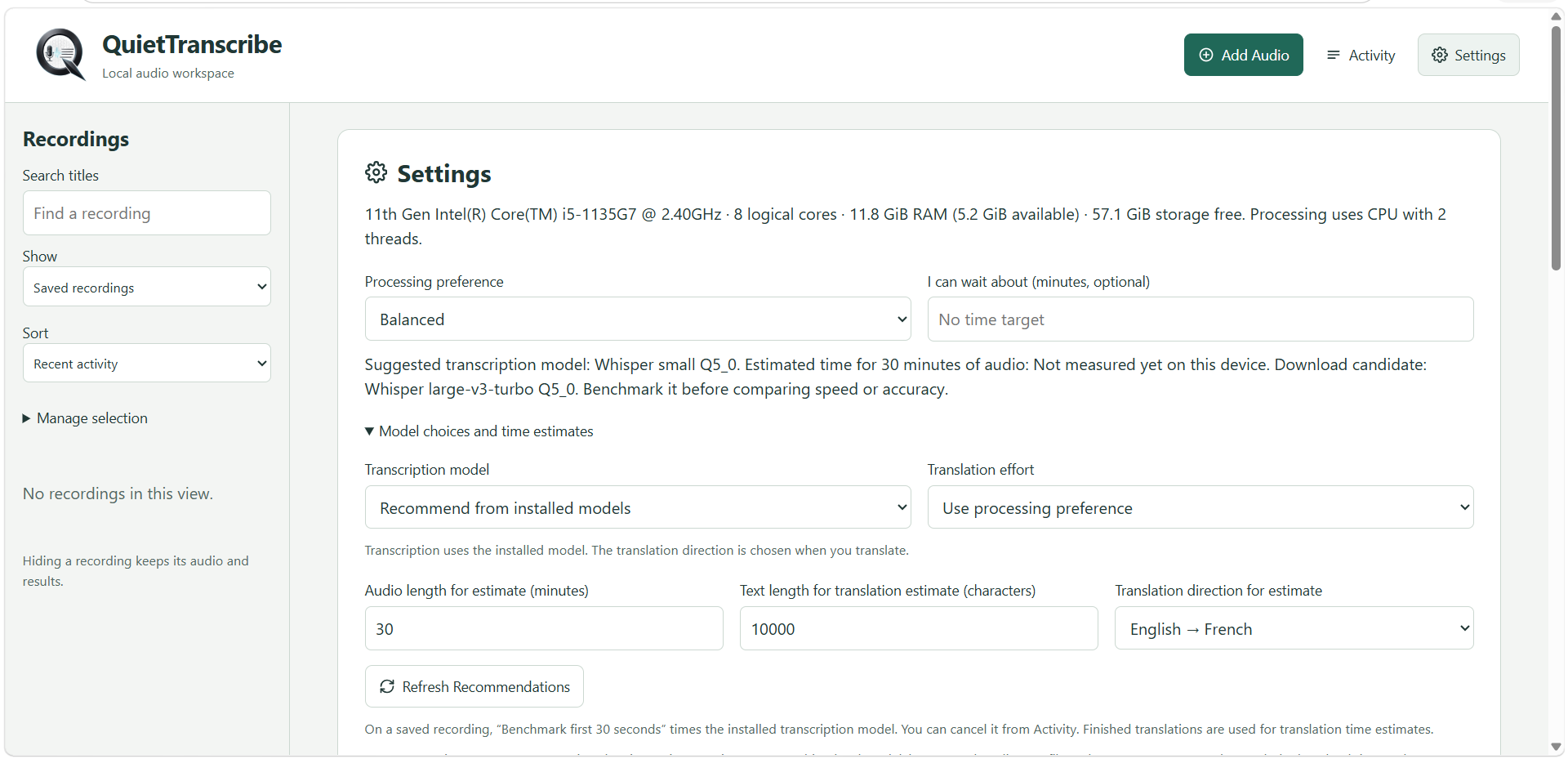
Match the model to the computer.

Settings reads the CPU, memory, and free storage, then suggests a transcription model. On this machine the suggestion is Whisper small Q5_0, with Whisper large-v3-turbo Q5_0 available to benchmark before you trade speed for accuracy.

  • Balanced processing, or a time target you can wait for
  • Benchmark the first 30 seconds from Activity
  • Estimate translation effort, including English to French
Settings showing hardware details, a Whisper model recommendation, and English to French translation estimates.
Keep the recording

Transcripts, minutes, and action plans without sending the audio away.

Download a model when you want one. After that, the work happens on the computer that holds the recording.

Choose a license →